






|
|
|
|
|
|
|
|
|
|
|
|

 HomeDownloadScreenshotsAnonymity CheckContact / ForumHelp & FAQLegal Notice HomeDownloadScreenshotsAnonymity CheckContact / ForumHelp & FAQLegal Notice Support AN.ON!Payment ServiceCrime PreventionAbuseSurvey Support AN.ON!Payment ServiceCrime PreventionAbuseSurvey HelpMix Config ToolVoluntary Commitment HelpMix Config ToolVoluntary Commitment DocumentationRecent publicationsPress DocumentationRecent publicationsPress RoadmapsBugtrackingSource CodesCompiled Binaries RoadmapsBugtrackingSource CodesCompiled Binaries
|
|
Installation of JonDoFoxThe installation integrates the JonDoFox profile in a locally installed Firefox, so that JonDoFox operates seamlessly with your system. Any previous Firefox configuration you may have created remains untouched by the installation. After installing, you may choose between both your profile and the JonDoFox configuration at each start of Firefox. 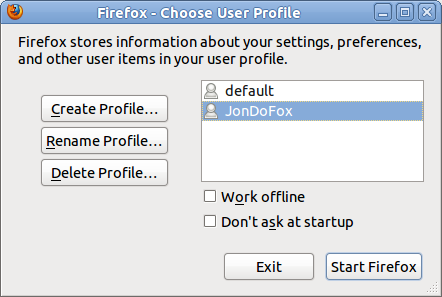
First, install Firefox on your system if you haven't done so yet. After that, you may install JonDoFox. Alternatively you may choose a portable installation "for travelling" on a removable drive (only for Windows). This will install a portable Firefox too. Mac OS X
Notice: The installer may also be used for deinstalling the previously installed
profile, but beware: Linux distributions
Debian/UbuntuUsers of Debian and Ubuntu distributions may use our software repository to install JonDoFox together with JonDo and keep ist up-to-date. Alternatively you may install the Debian package jondofox-en_all.deb (PGP signature). At first install the requirements "Firefox" or "Iceweasel", "zenity" and "ttf-mscorefonts-installer" (non-free) with your prefered package manager. Afterwards you can install the JonDoFox DEB: > sudo dpkg -i jondofox-en_all.debVerify the OpenPGP signaturesFor all downloads we provide OpenPGP signatures. All signatur files were created with the OpenPGP key JonDos_GmbH.asc. To verify the signatures you have to download the key or fetch it from a key server. Verify the fingerprint of the key and afterwards verify the signatur of your downloads. > gpg --recv 0xF1305880> gpg --fingerprint 0xF1305880 fingerprint: 1866 F973 8C97 A3D6 56A4 E142 F510 0840 F130 5880 > gpg --verify <filename>.asc Notice When a new version of JonDoFox is released, you may always install the new version "on top of" the old one, i.e. into the same directory using the above mentioned steps. Your bookmarks and your certificate database will be kept.
| |
|
||||||||||||||
|
Top
|
|
© 2000-2011
JAP Team
|
|
|||||||||||||||
|
||||||||||||||||||

 JonDoFox