JAP -- ANONYMITY & PRIVACY

<- Install JonDoFox Table of Content Alternative browsers ->

Manual for the JonDoFox profile

Security relevant Firefox extensions

The JonDoFox package contains all extensions which are relevant for your security, already with settings optimized. The Firefox status bar always gives you control of the most important functions integrated in JonDoFox (CS-Lite, AdblockPlus, NoScript and JonDoFox):

Statuszeile JonDoFox (CSLite, AdblockPlus, NoScript und JonDoFox)

Control Cookies with CS-Lite

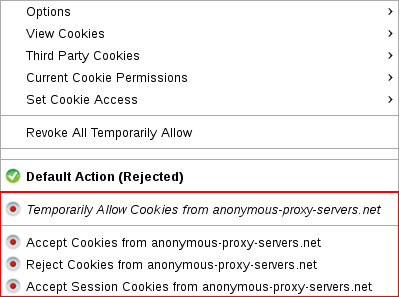
Using CS-Lite, you may very conveniently determine for which websites to accept cookies and for which to block them. If you click on the CS-Lite icon CS-Lite Icon with your left mouse button, you are given the following options for the currently visited web site:

CS-Lite Menü
  • Temporarily allow
    The Cookie is only accepted for the current browser session and will be removed afterwards. After browser restart, the website is no longer allowed to read or set a Cookie. This is the recommended setting.
  • Allow for session
    The Cookie is only accepted for the current browser session and will be removed afterwards. After browser restart, the website may set a new cookie.
  • Allow
    The cookie is stored in the browser as long as the website has defined. It may be kept and accessed by the web site even after browser restart.
  • Remove
    Any rule you set for the website before is removed. The website is no longer allowed to read or set a cookie.

Warning: You should never use the option CS-Lite: Cookies global akzeptieren Allow Cookies Globally if possible. This allows cookies from all websites that have not been explicitly CS-Lite: Cookies global akzeptieren blocked, and others may track your steps on the Web.

Filter advertisements with AdblockPlus

AdblockPlus AdblockPlus is an advertisement filter that runs in the background. Usually, you do not have to alter its settings. However, you may add your own filter lists any time.

Control active contents with NoScript

NoScript NoScript-Icon lets you conveniently control which potential dangerous scripts and plugins from a website your browser may execute or not.

Controlling installed plugins

When you visit a website containing plugin content like Flash movies or Java applets, this content will be automatically blocked by NoScript. A placeholder is shown instead of the active content:

NoScript-Platzhalter

You may allow the content by clicking on the placeholder or by choosing the respective option in NoScript: Geblockte Objekte Blocked Objects after clicking on the NoScript menu icon NoScript-Icon.

Warning: Without special protective measures, allowed plugin content may completely or partially revoke your anonymity and might even damage your system.

Controlling JavaScript

If you click on the NoScript iconNoScript-Icon you get a list of all addresses/service providers with JavaScript code on the currently visited web site. The respective entries are marked with theNoScript temporär erlauben icon:

NoScript: Erlaubnis erteilen

By clicking on NoScript temporär erlauben Temporarily allow you activate scripts for this entry. By another click you may easily remove this permission again (see image below). If you would like to remove the permissions for all addresses, you just have to click on NoScript: Temporäre Berechtigungen aufheben Revoke temporary permissions.

NoScript: Erlaubnis entziehen

Warning: You should give as few permissions as possible, and if possible only for the currently visited website. Third party scripts are often only used to spy on you and are rarely needed for proper functionality of the website.

If you generally distrust any address you may classify it untrusted, and it will no more show up within the addresses you might allow. In order to make this classification, move your mouse over the option NoScript: nicht vertrauenswürdig Untrusted. Then, you get an overview of all the addresses on the current website which you may mark untrusted:

NoScript: nicht vertrauenswürdig Menü

You may undo this action just the same way.

Stay flexible and switch proxy

If you would like to surf the Web with a different (local) proxy than JonDo or without any proxy, just use the button JonDo-Proxy integrated in JonDoFox (down right) in order to switch between different proxy configurations:

JonDoFox-Popup
  • No Proxy: If no proxy is set, JonDoFox directly connects to the Internet. Attention: Your IP address will be sent in plain and is not hidden!
  • Custom: Using this setting, you may use your own proxy configuration. Choose NoScript: nicht vertrauenswürdig Edit Custom Proxy in order to create an individual proxy configuration. However, this is only recommended for experts.
  • Tor: If you have installed and started the program Tor you may use it as an alternative to JonDo with this setting.
  • JonDo: When this setting is active, JonDoFox sends the browser's communication data to JonDo. JonDo needs to be separately installed and started.

Whenever you like to bypass the proxy without completely deactivating it (e.g. when downloading large files to save time and money), just open the context menu with a right mouse click on the file and choose Bypass JonDo/Tor/Proxy and Save Link As...

Protection against dangerous flash videos: Downloading videos with DownloadHelper and aTube Catcher

To prevent having to activate dangerous Flash in your browser, you should always download web videos to your hard drive and play them from there. This also saves you the additional traffic which would be needed to view a streaming video again. Besides some links to video download sites, JonDoFox contains the download tool DownloadHelper for this purpose. If you are visiting e.g. a YouTub page, just click on the black triangle left to the address bar (marked in red) and select the video you would like to download:

1-Click-Video-Download with DownloadHelper

For Windows and Linux (under WINE), there also exists an excellent freeware program called aTube Catcher. You may configure this program for JonDo by activating the HTTP proxy in aTube tcher in Tools->Connection settings and setting it to Host:127.0.0.1 and Port: 4001

aTube Catcher Connection settings: HTTP proxy 127.0.0.1:4001

For playing movies of all video formats on all operating systems, the free VideoLAN Media Player is a very good choice.


<- Install JonDoFox Table of Content Alternative browsers ->


Download

Stable Version
00.12.005


Beta Version
00.12.023


InfoService

Status of available AN.ON services and information about them.


Aktuell / News

Stop SPAM CookieCooker scrambles cookies, manages your web accounts, protects against SPAM by using trash addresses and blocks (flash) advertisement.


---