|
AN.ON/JonDonym
To get to this panel, press the button "Config" in JonDo's main window, then choose the entry
"Anonymity" from the list to the left and open the tab
"JonDonym".
In order to better understand the information and settings in this panel,
you might first want to read the introduction to JonDonym und AN.ON.
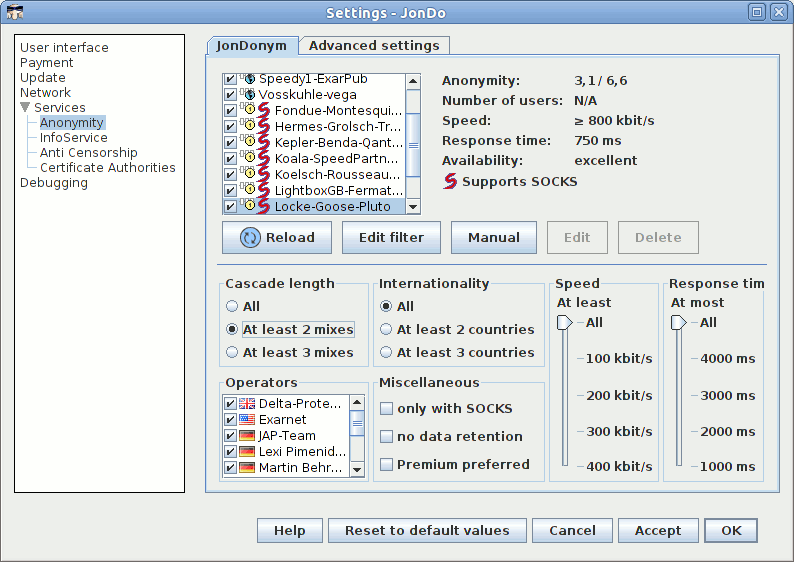
With the help of the filter you can determine the
selection criteria by combining multiple criteria.
Click the button "Edit filter" to create your own filter. You can adjust the
following selection criteria to your needs:
Cascade length
Determine whether a single mix is acceptable or whether you only want to
use mix cascades.
Notice:
When using a single mix service, your privacy will only be protected if the
respective operator is completely trustworthy.
Operators
Here you may decide if you would like to hide services because of the
participation of a certain organization or individual as a mix operator.
Internationality
Determine how many different nations have to participate in the service.
This includes the location of the mix operating organizations and also the
geographic location of the servers themselves.
Notice:
The more internationalization, the more secure the service should be
esteemed.
Miscellaneous
Filter services that do not support the SOCKS5 protocol, or that perform a
data retention that may, under certain circumstances, influence your
privacy. Moreover, you may force using only services that are free of
charge here.
Notice SOCKS5 is a proxy protocol. You may use it to anonymize even more
applications than with HTTP alone.
Speed and Response time
Here you can set a minimum speed and a maximum latency that the service has
to provide in order to meet your selection criteria.
Blocking single services
The checkboxes to the left of the service entries are checked at default for
all available services. Unchecking a box causes JonDo to no longer connect to
this service. This achieves even more detailed filtering of services than is
already possible with the user defined service filters.
After having adjusted all selection criteria to your likings, click "Accept" to activate your user defined filter. With"Cancel" you can revert your settings.
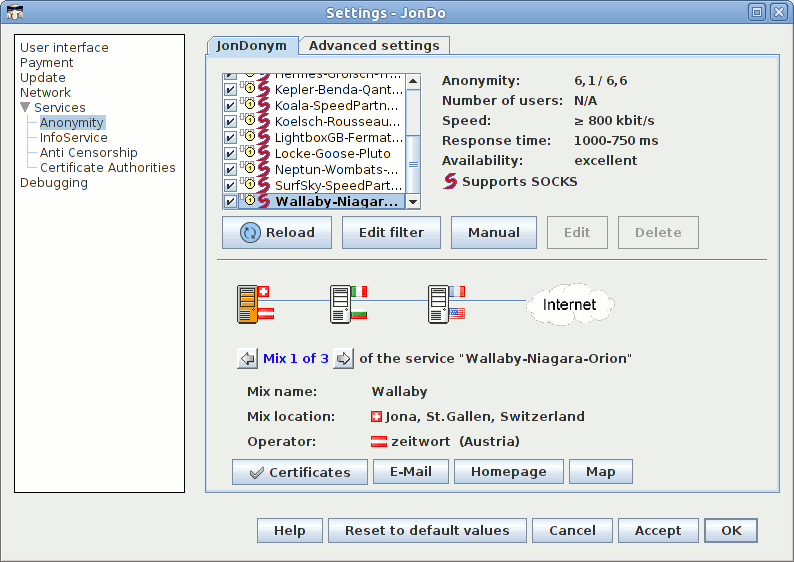
You can receive very detailed information about the different services. When
hovering with your mouse over an entry in the selection list below the service
filter you will be shown the address of the first mix and its access ports. To
the right of the list you will furthermore be shown the following information
about the selected service:
Anonymity
Shows two evaluations for the presented service, which have both influence
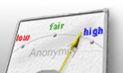
on your anonymity: Distribution and user activity (refer to the Anonym-O-Meter). The
higher the respective value is (maximum is 6), the better for your
security. The respective theoretic maximum is shown after the slash
(6,6).
If all mix operators of this service are forced to perform special legal
obligations which might influence anonymity in a negative way, a warning
label  is shown behind the
anonymity evaluation. You may click on it to get further information. is shown behind the
anonymity evaluation. You may click on it to get further information.
Number of users
The value displays the current number of users connected to the service.
The higher the user count, the higher your privacy will be while using the
service.
Speed
Displays the speed with which data is sent and received in the cascade. The
value is measured by the InfoServices and is calculated across all
measurements from within the last hour.
Response time
Displays the time that passes between sending a data packet and receiving
the response data. The value is measured by the InfoServices and is
calculated across all measurements from within the last hour.
Availability
You can recognize from this information how reliable and stable the
selected service works. The value is measured by the InfoServices and is
calculated across all measurements from within the last hour. Also if this
service is for some reason not available for you information about this
will be shown here. If you click on the message, a dialog with further
explanations will open.
 Supports SOCKS Supports SOCKS
If the selected mix cascade supports the SOCKS protocol you will see this message and the SOCKS icon below the availability information. Otherwise you may only use HTTP(S).
The data is further concretized in the lower part of the window. For every
mix of the selected service a symbol will be shown. You can tell the number of
mixes in a cascade from it. The flag symbols to the right of the mix symbols
indicate the nationality of the mix operator (lower flag) and the geographic
location of the mix (upper flag). If there is only one flag next to the mix
symbol it means that the operator and the mix are located in the same country.
Flags with a colored border give a quick overview on the certification status of the respective
mix.
Click on a mix symbol or on the right/left arrows to receive the following
information about the respective mix of the cascade:
Mix name
The name of this mix as given by its operator.
Mix location
The geographic location of the server is shown here. The flag symbol to the
left shows at a glance in which country the mix is located.
Operator
The name of the organization that operates the selected mix. The flag
symbol to the left depicts the country in which the mix operator is
located.
Certificates (Button)
The icon of this button shows you the certification status of the respective
mix at a glance. A click on it opens details about the certificates. (Further information about certificates...)
E-Mail (Button)
A click opens your e-mail program with the address of the operator of the
respective mix. Moreover, you may see the e-mail address when moving your
mouse over the button.
Homepage (Button)
A click opens your browser with the address of the operator of the
respective mix. Moreover, you may see the homepage address when moving your
mouse over the button.
Map (Button)
If the mix operator publishes detailled location information about his
server, you may see this on a map which opens on clicking.
Law (Button)
This button only appears if an operator is forced to perform special legal
obligations which might influence anonymity in a negative way. It opens a
web site with further explanations.
Actions for the available services
Below the window with the available JonDonym services you will find a row of
buttons with which the following actions can be conducted:
Reload
A click on this button makes JonDo delete all services from the list and
ask the InfoService for available services again.
Select
This button selects the currently marked service as the active service.
JonDo will try to connect tot this service if anonymity is set to On in the main window.
Notice: If you activate a premium service but have no appertaining account a dialog
will open for account creation, and no connection will be made to the
service.
-
Here you can manually add a service which has not been reported available
by the InfoService but that you know the access data of.
This function is rarely needed, e.g. if you can not connect to an
InfoService to receive information about services automatically.
Please also note the above warning for the filter "Services added by yourself".
After clicking the button you will be presented the following fields in
the lower part of the window:
Host
Enter the hostname or IP address of the service.
Port
Enter the port of the service.
OK
After having filled in the above fields, you can insert the service
into the list of available services herewith.
Cancel
Cancels the process and redisplays information about the current
service at the bottom section.
Edit
This button is only active if a manually entered
service exists in the list and is selected. With this action you can edit
the settings of a manually entered service again.
Delete
You can only click this button if you have also selected an already
existing manually created service from the list. It will remove the
respective service from the list.
| |
|
|

Restrictions for the Dresden (JAP) anonymisation servers
After careful consideration we have decided to restrict the size of downloads over the Dresden (JAP) mixes a little. The reason is to allow a more fair use of scarce resources of our servers especially for users who simply want to surf the Web. more...
|
|















 Certificates